Hello all,
when I got the "GQ EMF PRO" app running on Ubuntu 24.04 using Wine and COM port mapping it failed to download History and Screenshots from the device. It turned out that the problem cause was not the „Winchiphead CH341" driver built into the Linux kernel (see https://docs.kernel.org/usb/usb-serial.html) but the baud rate that the app was not able to set to 115200 baud in the Wine environment.
Here is how I got everything working. ;-)
Best regards,
Manfred from Germany
===========================================================================================
How to get the "GQ EMF PRO" 32-bit Windows application working with Ubuntu 24.04 using Wine
===========================================================================================
Terminal commands to install Wine on Ubuntu 24.04 (Noble)
=========================================================
sudo mkdir -pm755 /etc/apt/keyrings
wget -O - https://dl.winehq.org/wine-builds/winehq.key | sudo gpg --dearmor -o /etc/apt/keyrings/winehq-archive.key -
sudo dpkg --add-architecture i386
sudo wget -NP /etc/apt/sources.list.d/ https://dl.winehq.org/wine-builds/ubuntu/dists/noble/winehq-noble.sources
sudo apt update
sudo apt install --install-recommends winehq-stable
wine --version
Example output: wine-11.0
winecfg
Comments:
If you use another version of Ubuntu or Debian see https://gitlab.winehq.org/wine/wine/-/wikis/Debian-Ubuntu for instructions.
=============================
Connect the GQ EMF-390 device
=============================
Terminal command to get the USB-serial port
===========================================
ls /dev/ttyUSB*
Example output: /dev/ttyUSB0
Map USB-serial port to Windows COM port using Wine registry
===========================================================
Open the Wine Registry Editor using the "wine regedit" terminal command
Navigate to HKEY_LOCAL_MACHINE\Software\Wine\Ports
Create a new string value, name: COM8, value: /dev/ttyUSB0
Close the Wine Registry Editor
Restart Wine using the "wineserver -k" terminal command
Add user to dialout group for serial access
===========================================
sudo gpasswd -a $USEpython3 config-ttyUSB0-115200baud.pyR dialout
! Important: Run a Python script to configure the USB-serial port!
==================================================================
sudo python3 config-ttyUSB0-115200baud.py
Example output:
Configured /dev/ttyUSB0 to use 115200 baud.
Sent <GETVER>>, response: GQ-EMF390v2Re 3.50
Closing serial port.
Install the "GQ EMF PRO" application
====================================
wine GQEMFPro3.67.exe
=====================================================
Launching the "GQ EMF PRO" 32-bit Windows application
=====================================================
Launch the application by clicking the "GQ EMF PRO" icon.
If there is no icon for the application use the "wine explorer" command to open the Wine file manager.
The GQ_EMF_PRO.exe application can be found in the "C:\Program Files (x86)\GQ EMF PRO" folder.
You might have to reboot your PC before launching the application for the first time.
Don't forget to run the config-ttyUSB0-115200baud.py script after a reboot or after you disconnected the GQ EMF-390 device.
config-ttyUSB0-115200baud.py source code:
=========================================
import serial
import time
if __name__ == "__main__":
try:
ser = serial.Serial('/dev/ttyUSB0', 115200, timeout=1)
time.sleep(1) # wait for device init
print(f"Configured /dev/ttyUSB0 to use 115200 baud.")
ser.write(b'<GETVER>>')
response = ser.readline()
print(f"Sent <GETVER>>, response: {response.decode('utf-8').strip()}")
except serial.SerialException as e:
print(f"Serial error: {e}")
except FileNotFoundError:
print("Port not found. Check device connection.")
except PermissionError:
print("Permission denied. Add yourself to the dialout group (Linux).")
finally:
if 'ser' in locals() and ser.is_open:
print("Closing serial port.")
ser.close()
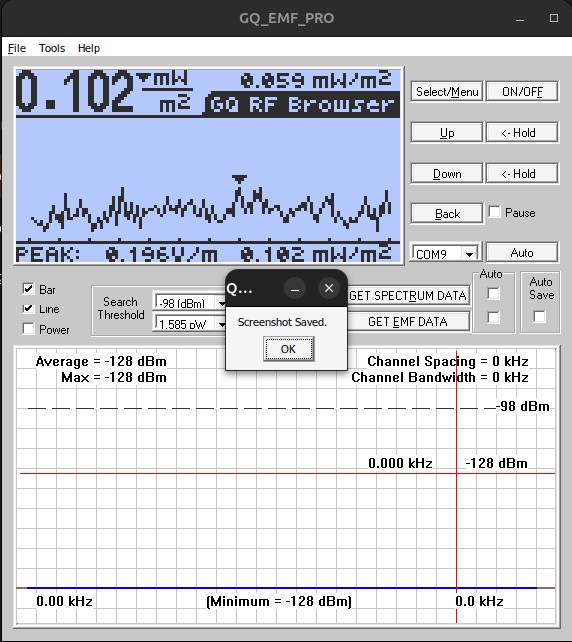 |



 Using "GQ EMF PRO" app on Ubuntu 24.04


 Posted - 05/15/2026 : 09:21:00

